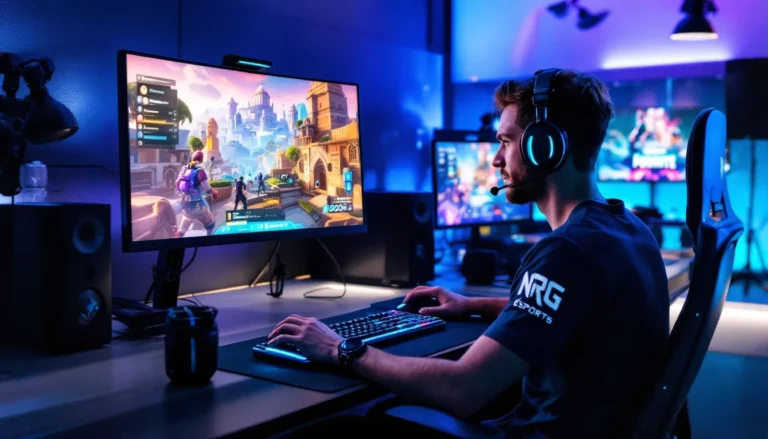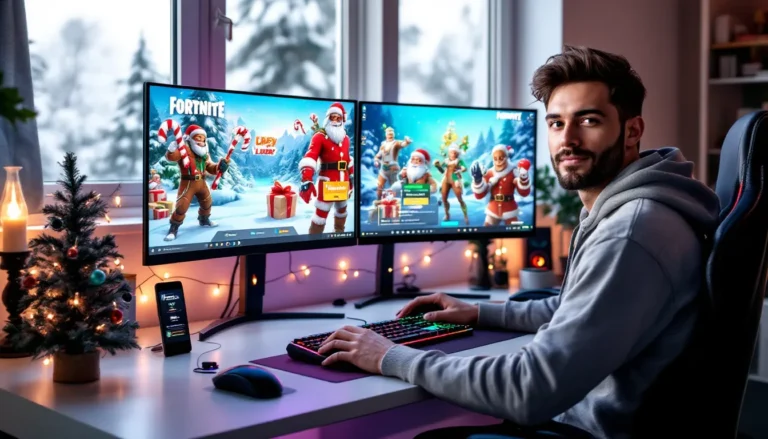
Imagine this: you’re lounging on your couch, controller in hand, but your laptop is calling your name. Why not combine the best of both worlds? Playing Xbox on a laptop with HDMI is not just a tech-savvy move; it’s a game-changer. Whether it’s for a cozy gaming session or to impress friends with your multitasking skills, this setup makes it all possible.
Understanding Xbox and Laptop Connectivity
Connecting an Xbox to a laptop via HDMI creates an exciting gaming experience. This setup requires understanding the essential elements that facilitate smooth connectivity.
HDMI Basics
HDMI stands for High-Definition Multimedia Interface. This interface transmits both audio and video signals through a single cable. Most modern TVs and laptops support HDMI input or output, making this connection straightforward. Transmissions through HDMI maintain high quality, producing clear visuals and immersive sound. Diverse devices utilize HDMI, ensuring compatibility across various platforms.
Requirements for Connection
Several components are necessary for establishing a connection between an Xbox and a laptop. First, an HDMI cable connects both devices, facilitating communication. Second, the laptop must feature an HDMI input port, essential for receiving the Xbox signal. Important to note, many laptops include HDMI output ports, not input, which may limit compatibility. Additionally, software settings on the laptop need proper adjustments to detect the Xbox. Lastly, ensuring the laptop and Xbox models are compatible enhances performance.
Step-by-Step Guide to Connect Xbox to Laptop

Connecting an Xbox to a laptop using HDMI involves a straightforward process, allowing for seamless gameplay on a larger screen.
Connecting via HDMI
Start by positioning the laptop and the Xbox close together. One end of the HDMI cable plugs into the HDMI output on the Xbox. The other end connects to the HDMI input on the laptop. Some laptops feature an HDMI input, allowing direct connectivity; others might not. If the laptop lacks an HDMI input, consider using a capture card as an alternative. Confirm the connection by powering on the Xbox. A prompt appears on the laptop screen if the connection is successful.
Configuring Laptop Settings
Access display settings on the laptop to configure the new connection. Right-click on the desktop, then select Display Settings. Under the Multiple Displays section, choose the option to extend or duplicate the display. Selecting these options enables the Xbox display to appear on the laptop. Adjust the resolution for optimal visuals as needed. Confirm that the laptop’s sound settings are set to output audio from the HDMI connection in case audio is required. This configuration enhances the gaming experience by integrating both video and audio effectively.
Troubleshooting Common Issues
Common issues can arise when playing Xbox on a laptop via HDMI. This section covers these problems, offering solutions for better gaming experiences.
No Signal on Laptop
A lack of signal often results from incorrect settings. First, verify that the HDMI cable is securely connected to both devices. If the connection seems fine, check the HDMI input settings on the laptop. Selecting the right input source can resolve many issues. Adjusting the display settings might also help; extending or duplicating screens often resolves signal problems. Restarting the laptop after connecting the Xbox can refresh the settings and establish a connection. Finally, testing the HDMI cable on another device can determine whether the cable itself is faulty.
Audio Problems
Audio issues can also affect the gaming experience. Make sure the laptop’s volume settings are adjusted properly. Checking the sound output settings is important as well; the laptop may not automatically switch to HDMI audio. In some cases, right-clicking the sound icon in the taskbar and selecting ‘Playback devices’ can help identify the issue. Once there, setting the HDMI output as the default device typically resolves audio problems. Restarting both the Xbox and laptop might yield results too, ensuring all settings refresh successfully.
Enhancing Your Gaming Experience
A few adjustments can elevate the gaming experience when using a laptop to play Xbox through HDMI.
Using External Speakers
External speakers can significantly improve audio quality. Many gamers prefer this option for a more immersive soundscape. Connecting external speakers involves plugging them into the laptop’s audio output. This method not only enhances clarity but also boosts volume levels compared to built-in laptop speakers. Surround sound systems provide an exceptional experience, allowing players to hear every detail in their games. Specific settings in the audio preferences might require adjustment to ensure sound routes correctly.
Recommended Accessories
Certain accessories can enhance gameplay. A high-quality HDMI cable ensures a stable connection and optimal video resolution. An adjustable laptop stand promotes ergonomic positioning, preventing neck strain during long gaming sessions. Additionally, a gaming headset allows for clear communication with teammates. Best performance often comes from using an Xbox-compatible controller for seamless gameplay. Using these accessories addresses comfort and functionality, making game time more enjoyable.
Conclusion
Playing Xbox on a laptop via HDMI opens up a world of gaming possibilities. This setup not only enhances the overall experience but also allows for seamless multitasking. By following the outlined steps and utilizing the right accessories, gamers can enjoy high-quality visuals and audio.
Troubleshooting common issues ensures a smooth gaming session, making it easier to dive into favorite titles without interruption. With the right adjustments and configurations, this innovative approach to gaming can lead to hours of enjoyment. Embracing this method can transform how one interacts with both their Xbox and laptop.