Setting up an Xbox can feel like a rite of passage for gamers, but it doesn’t have to be a Herculean task. Picture this: you’ve just unboxed your shiny new console, and the excitement is palpable. But wait—what’s that tangled mess of cables? Fear not! With a little guidance, he’ll have that Xbox up and running faster than you can say “achievement unlocked.”
Overview of Xbox Setup
Setting up an Xbox involves several steps, ensuring gamers enjoy a seamless experience. Initially, unboxing the console brings excitement. Users should lay out all components, including the console, controller, power cable, and HDMI cable.
Connecting the console to the TV is crucial. An HDMI cable links the Xbox to the TV or monitor, transmitting high-quality video and audio. Plugging in the power cable into an outlet powers the console, making sure to keep cords organized to prevent tangles.
Turning on the Xbox starts the setup process. A prompt to select a language appears on the screen. Choosing the preferred language sets the console’s interface for a personalized experience.
Once the language is selected, the Xbox requires an internet connection. Connecting via Wi-Fi or Ethernet cable enables updates and access to online features. This step enhances functionality, allowing gamers to download games and apps efficiently.
Creating or signing into a Microsoft account enables access to Xbox Live. Gamers can manage friends, join multiplayer games, and track achievements through this account. Signing up takes mere minutes, with options available for both existing and new users.
After account setup, system updates often occur. These updates fix bugs, enhance performance, and introduce new features. Checking for updates ensures the console functions optimally.
Gamers can personalize settings next, adjusting preferences such as privacy and notifications. Control over these settings ensures a tailored gaming experience. Finally, installing games from discs or downloading them digitally adds content to the library, making the setup complete and ready for gaming.
Preparing for Your Xbox Setup
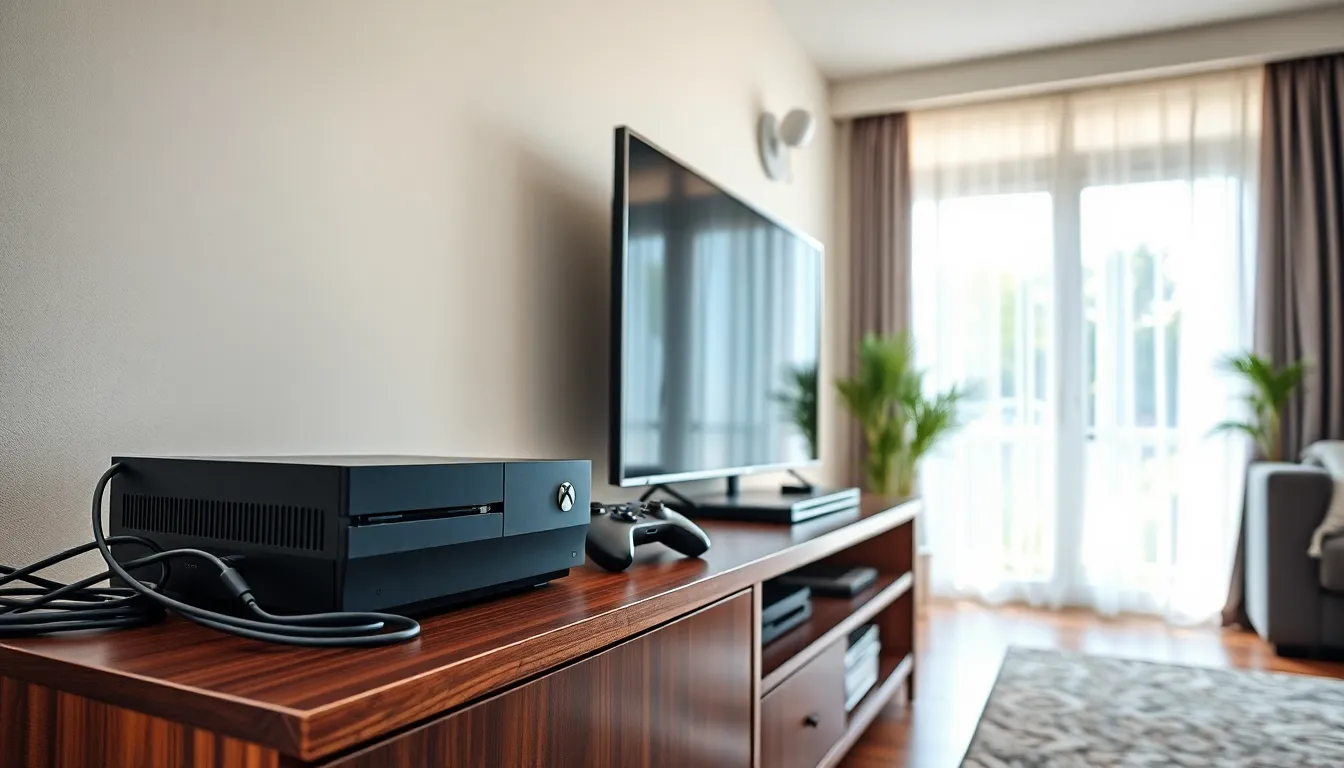
Preparing for the Xbox setup involves gathering essential equipment and selecting an optimal location. These steps ensure a smooth and efficient installation process.
Required Equipment
Start with the Xbox console, power cable, and HDMI cable. Ensure you also have a controller, batteries or a charging cable, and an internet connection. Consider additional accessories like a headset or external storage if needed. Use a TV or monitor that supports HDMI for the best visuals. Finally, verify that a stable internet connection is available for downloading updates and accessing online features.
Choosing the Right Location
Select a well-ventilated area that accommodates both the console and the TV or monitor. Avoid placing the Xbox in enclosed spaces to prevent overheating. Ensure that there’s easy access to power outlets for the console and any additional devices. Position the setup close to the router or modem for a reliable wired or wireless connection. Consider cable management options to keep the area tidy and organized.
Step-by-Step Xbox Setup Process
Setting up an Xbox involves a series of simple yet crucial steps. This guide outlines the entire process for a smooth start.
Unboxing Your Xbox
Unboxing the Xbox creates excitement. Begin by finding a clear space to carefully remove the console from its packaging. Make sure to take out all components, including the controller, power cable, and HDMI cable. Inspect each item for damage. Keeping everything organized helps prevent misplaced components during the setup. Discard any unnecessary packaging materials for a tidy workspace.
Connecting to Power and TV
Connecting the Xbox to power and the TV requires attention to detail. Insert one end of the power cable into the console and the other into a wall outlet. Next, take the HDMI cable and connect it from the console to an available HDMI port on the TV. Turning on the console will prompt users to select the correct HDMI input on their TV. Ensuring secure connections prevents potential issues with power and video output.
Initial Software Setup
Initial software setup customizes the Xbox for personal use. Power up the console to start the setup process. Users are greeted with a language selection screen; choosing a preferred language personalizes the experience. Connecting to the internet comes next, whether through Wi-Fi or Ethernet. After establishing a connection, signing into or creating a Microsoft account follows for access to various features. Completing system updates ensures the console runs smoothly and enhances performance.
Customizing Your Xbox Experience
Customizing the Xbox experience enhances gaming enjoyment. It allows users to personalize settings according to preferences.
Setting Up User Profiles
Creating user profiles personalizes gameplay. Each player can have an individual profile, making it easy to track progress and achievements. To set up a profile, users navigate to the profile settings on the dashboard. Selecting “Add New” prompts them to sign in with their Microsoft account or create a new one if needed. Custom names and avatars can be chosen during this process, adding a unique touch. Profiles ensure that everyone enjoys a personalized gaming experience.
Configuring Display and Audio Settings
Configuring display and audio settings optimizes the gaming visual and auditory experience. Users start by going to the Settings menu and selecting “General.” Under this menu, the “TV & Display Options” allow for adjustments to resolution and refresh rate. Depending on the TV’s capabilities, choices may include 1080p or 4K. For audio, users navigate to “Volume & audio output,” allowing them to select stereo, surround sound, or other audio settings. Adjusting these settings enhances immersion, making gameplay more engaging.
Troubleshooting Common Setup Issues
Setting up an Xbox can occasionally lead to issues. Common problems include connectivity difficulties and display errors.
Connectivity Problems
Connectivity problems often arise during setup. Users may encounter challenges connecting to Wi-Fi or Ethernet networks. Checking the network settings can provide clarity. Ensure the console is within range of the router for Wi-Fi connections. Wired connections should have the Ethernet cable securely inserted on both ends. Restarting the router can resolve connection drops. Additionally, verifying that the network is operational guarantees a stable internet connection. If issues persist, resetting the network settings on the console may help.
Display Issues
Display issues can disrupt the gaming experience. Users might face blank screens or incorrect resolutions. First, confirm the HDMI cable is firmly connected to both the console and TV. Selecting the correct input on the TV also plays a crucial role in resolving such problems. Adjusting the display settings in the Settings menu may improve clarity. Users should explore options for screen resolution to match their TV’s capabilities. If the screen remains blank, trying a different HDMI port may also prove beneficial.
Setting up an Xbox is an exciting journey that opens the door to countless gaming adventures. By following the outlined steps and tips, gamers can create a personalized and optimized gaming environment.
From unboxing to connecting the console and customizing settings, each phase contributes to an enjoyable experience. Troubleshooting common issues ensures that players can dive into their favorite games without frustration.
With everything in place, it’s time to enjoy the thrilling world of gaming that awaits. Happy gaming!