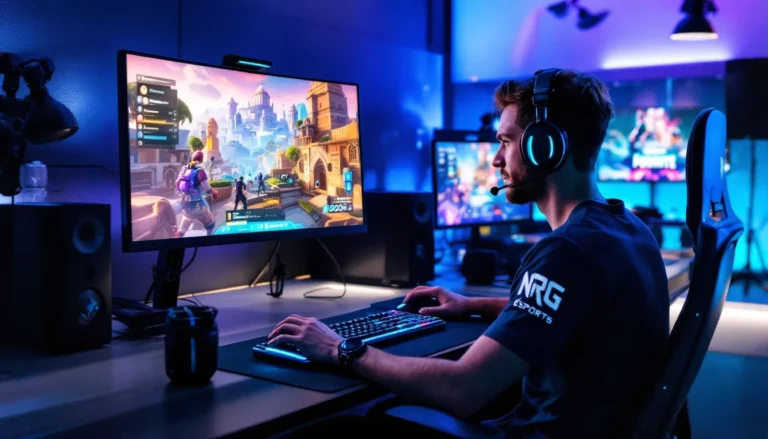
Your keybinds can make or break you in Fortnite. It’s not about memorizing the default layout Epic handed you, it’s about creating a control scheme that turns your intentions into instant actions. Every millisecond counts when you’re in a build fight 20 layers above the storm, editing through structures while tracking an opponent’s movements. The difference between a Victory Royale and spectating your squad? Often, it’s the player who can execute faster without their fingers fumbling across the keyboard.
Chapter 5 Season 2 has brought refined movement mechanics and building adjustments that reward speed and precision more than ever. Whether you’re grinding ranked or practicing in Creative, optimizing your keybinds isn’t just a competitive advantage, it’s foundational to improving at the game. This guide breaks down the science and strategy behind building the perfect keybind setup, from core principles to pro-level configurations, so you can stop fighting your keyboard and start dominating the map.
Table of Contents
ToggleKey Takeaways
- Optimizing your Fortnite keybinds by minimizing finger movement and eliminating WASD conflicts directly improves your reaction time and mechanical ceiling in build fights.
- The best Fortnite keybinds assign your most critical building actions (wall, ramp) to Zone 1 keys like Q and E, or mouse buttons, while keeping movement control independent from editing and building.
- Scroll wheel reset has become the competitive meta for edit resets, allowing consistent, lightning-fast cancels that are harder to fat-finger than traditional keypresses under pressure.
- Transitioning to new keybinds requires 2-3 weeks of focused Creative practice before performance matches your old setup, with 4-6 weeks needed for full integration and improvement.
- Pro player configurations reveal the principle of separating keyboard hand (movement and building) from mouse hand (aiming and editing), though personal adaptation to your hand size and mouse availability is essential.
Why Your Keybinds Matter in Fortnite
Fortnite isn’t your typical shooter. You’re not just aiming and firing, you’re building cover mid-gunfight, editing windows to take shots, resetting walls under pressure, and swapping between six different actions in under two seconds. Your keybind setup determines whether you can pull off these sequences fluidly or choke when it matters most.
The Impact of Keybinds on Your Performance
Keybinds directly influence your reaction time and mechanical ceiling. If your wall is on G and your ramp is on V, you’re forcing your index finger to travel across half the keyboard just to execute a basic 90. That’s wasted time and mental energy.
Consider this: the average human reaction time is around 200-250ms. Add in the time it takes to physically move your finger to a distant key, press it, and return to your movement keys, and you’ve easily doubled your response time. In a game where TTK (time-to-kill) with an optimal loadout can be under a second, those delays are lethal.
Top-tier players consistently hit 10-12 actions per second during high-intensity build fights. They’re not superhuman, they’ve just optimized their keybinds to eliminate unnecessary movement. When your building keys sit within one key’s distance of WASD, you can maintain movement control while cycling through structures. That’s the difference between getting pieced through an open edit and countering with a protected reset.
Ergonomics and Finger Strain: Finding Your Comfort Zone
Long grinding sessions in Creative or Arena will expose every inefficiency in your setup. Awkward key placements lead to finger fatigue, missed inputs, and even repetitive strain injuries if you’re not careful.
Your left hand naturally rests on WASD, with your thumb on spacebar. The keys immediately surrounding this position, Q, E, R, F, C, X, Z, Shift, Ctrl, and Tab, are your prime real estate. These require minimal finger extension and let you maintain your anchor position.
Anything beyond two keys away (like 6, 7, G, H, or B) starts introducing strain. You’ll see beginner players stretching their pinky to hit far keys, which throws off their movement rhythm entirely. By the third hour of gameplay, that pinky is cramping and your inputs are getting sloppy.
The goal is to distribute actions across all available fingers without overloading any single digit. Your pinky shouldn’t be responsible for crouch, wall, and reload, that’s a recipe for fatigue. Smart keybind design balances the workload and creates muscle memory patterns that feel natural even under pressure.
Core Principles for Optimal Keybind Setup
Before diving into specific key recommendations, you need to understand the underlying logic that makes a keybind setup work. Random assignments won’t cut it, there’s a method that competitive players have refined over thousands of hours.
Minimize Finger Movement and Maximize Speed
Speed isn’t about button-mashing. It’s about creating the shortest possible path between thought and execution. Every keybind should be accessible without forcing your fingers to leave their home position or stretching uncomfortably.
Think of your keyboard layout as zones. Zone 1 (immediate WASD area) is instant access. Zone 2 (one key removed) is fast but requires slight repositioning. Zone 3 (two+ keys away) introduces lag. Your most critical actions, building, editing, weapon slots 1-3, need to live in Zone 1. Less frequent actions like map, inventory, or emotes can exist in Zone 3.
Mouse buttons are extensions of Zone 1. Most gaming mice offer at least two side buttons, and many competitive players use lightweight mice with additional programmable buttons. These are prime locations for high-frequency actions because your thumb naturally rests there and doesn’t interfere with aim.
The principle applies to your editing mechanics too. If your edit key is on F and your confirm is on E, but your reset is on Right Mouse Button, you’re creating an inconsistent pattern that your brain has to actively think about. Grouping related actions near each other builds faster neural pathways.
Separate Movement from Building and Editing
This is the most common mistake intermediate players make: binding critical build or edit actions to keys that conflict with movement. If you can’t strafe while placing a wall, you’re a sitting duck.
Your fingers need to handle three simultaneous input streams: movement (WASD), building/editing (surrounding keys), and aiming (mouse). The moment one of these streams blocks another, your gameplay degrades. Binding wall to A means you can’t move left while building, terrible design.
Smart setups maintain movement independence. That’s why you see experienced players favoring Q, E, R, F, C, X, V, and mouse buttons, none of these conflict with directional inputs. You can hold W to push forward while hitting Q for wall and E for ramp without your movement ever stuttering.
The same logic applies to editing. If you bind edit to F, you can hold W+D (moving diagonally forward-right) and hit F with your index finger without breaking stride. This lets you edit through structures while maintaining momentum, which is essential for skills like effective box fighting.
Best Keybinds for Building
Building mechanics define Fortnite’s skill ceiling. Your structure placement keybinds need to be faster than your opponent’s reaction time. Here’s how to set them up for maximum efficiency.
Wall, Floor, Ramp, and Cone Placements
These four structures are your defensive and offensive toolkit. The order of priority typically goes: Wall > Ramp > Floor > Cone, since walls provide immediate protection and ramps enable vertical mobility.
Wall should occupy your most accessible key, typically Q or a mouse side button. Q is perfect because your ring finger naturally curls to reach it without moving your hand position. Many players bind wall to their mouse thumb button instead, which frees up Q for another critical action but requires getting comfortable with thumb-driven building.
Ramp comes next in priority. E is a popular choice for keyboard users, as it’s symmetrical to Q and uses your middle finger. Some players prefer Mouse Button 5 (second thumb button) if they’ve assigned wall to Mouse Button 4, creating a cohesive thumb-based building flow.
Floor sees less use in modern competitive play but remains crucial for covering yourself when falling or taking height. F or C work well, both are accessible with your index finger without abandoning WASD. F gets slight preference because it doesn’t require curling downward.
Cone completes your toolkit. It’s used for defensive blocking, pyramid edits, and advanced techniques like cone jumps. V, Left Shift, or Tab are common placements. V uses your index finger (if F isn’t already assigned there), Shift utilizes your pinky without overextending, and Tab leverages your pinky in the upward direction.
Here’s a clean keyboard-based setup:
- Wall: Q
- Ramp: E
- Floor: F
- Cone: V
And a mouse-heavy alternative:
- Wall: Mouse Button 4
- Ramp: Mouse Button 5
- Floor: Q
- Cone: Left Shift
Optimal Mouse Button Utilization
Your mouse isn’t just for aiming, it’s a secondary input hub. Most competitive players bind at least one, often two building pieces to their mouse thumb buttons. This distributes the workload and keeps your keyboard hand focused on movement and utility.
The advantage is speed and independence. Your thumb doesn’t interfere with aim precision the way keyboard finger movements can disrupt WASD positioning. You can place walls while strafing, tracking, and adjusting aim simultaneously.
If you’re using a mouse with additional buttons (like the Logitech G502 or Razer Viper Ultimate), you can push even more functions there. Some players place edit on Mouse Button 5, though this is controversial, editing mid-aim can throw off tracking. Test what feels natural.
Don’t sleep on Mouse Wheel Up and Mouse Wheel Down either. These are excellent for weapon swaps or building material cycling. Just avoid binding them to actions that require precision timing (like edit confirm), since scroll inputs can be inconsistent.
Best Keybinds for Editing
Editing is where mechanical skill separates good players from great ones. Chapter 5 has emphasized edit-heavy gameplay, with tight edit-on-release timing and resets being critical in every engagement. Your edit keybinds need to be instant and consistent.
Edit Key Placement and Reset Options
Your edit key is arguably your most-pressed button in high-level play. It needs to be accessible without thought. The most popular choices are E, F, or a mouse side button.
E is the classic pick, central, comfortable, and doesn’t conflict with movement. If you’re using E for ramp, though, you’ll need to shift your building layout. Many players who adopt E for editing move their ramp to a mouse button or to Q.
F is favored by players who like keeping edit and building separate. Your index finger hits F naturally, and it doesn’t interfere with Q/E building assignments. The downside is losing F for floor if you’d placed it there.
Mouse button editing (usually MB5) is gaining traction in 2026. It keeps your keyboard hand purely for movement and building, while your mouse handles editing and aiming. The learning curve is steeper, but the ceiling is higher, you can edit while maintaining perfect WASD control.
Edit reset needs equal thought. The default “right-click to reset” works but conflicts with ADS. Most competitive players separate edit and reset entirely. Popular reset binds include:
- Scroll Wheel Reset (Mouse Wheel Down or Up): lightning-fast, consistent, lets you spam resets during pressure situations. You’ll need to unbind weapon scroll first.
- Secondary mouse button (if edit is on keyboard): keeps editing actions isolated to mouse hand.
- R or T (if keyboard-heavy): accessible but slower than scroll wheel.
Scroll wheel reset has become the meta since Season OG. Players like Peterbot and Mero popularized it, and for good reason, you can’t fat-finger a scroll input the way you can miss a keypresses under stress.
Advanced Editing Techniques and Keybind Synergy
Once you’ve mastered basic edits, advanced techniques rely on your keybinds working in harmony. Edit-on-release (where the edit confirms the instant you release the edit key) is standard in competitive. It’s faster than double-pressing edit, but requires confidence in your selections.
Techniques like double edits (editing two structures in rapid succession), edit-through-build sequences, and pre-edits all demand that your keybinds don’t introduce input conflicts. If your confirm is too close to your reset, you’ll accidentally reset when you meant to confirm, a death sentence in Arena.
Synergy matters for select-tile speed too. Your mouse needs to flick to tile positions and click without your left hand accidentally shifting WASD position. If your edit key is awkward, your body tenses up and throws off aim. Smooth keybinds keep you loose and accurate.
Many top-tier players practicing advanced Fortnite strategies spend hours in Creative edit courses to groove their keybind muscle memory. Maps like Raider’s Edit Course or Selage’s Speed Edits test your consistency under pace.
Best Keybinds for Weapons and Inventory
Your weapon slots need to be as fast as your builds. You can’t afford to scroll through your loadout or fumble for the right gun when an enemy edits into your box. Efficient weapon binds keep you in control of every engagement.
Weapon Slot Accessibility
The default 1-2-3-4-5-6 number row is awful. Reaching for 4, 5, or 6 mid-fight takes your fingers completely off WASD and introduces massive delays. Competitive players rebind weapon slots to keys within immediate reach.
Here’s a strong weapon slot setup:
- Slot 1 (Primary AR/SMG): 2 or 3, your index/middle finger can tap these without leaving WASD.
- Slot 2 (Secondary weapon/Shotgun): X or C, lower row, accessible with index finger.
- Slot 3 (Shotgun/Utility): 4 or Mouse Wheel Up, index stretch or scroll for quick access.
- Slot 4 (Heals/Utility): 5, Mouse Wheel Down, or Z, slightly less critical, so further reach is acceptable.
- Slot 5 (Misc/Heals): 6 or T, rarely accessed mid-combat, so distance is fine.
Some players go further and bind their two most-used weapons (usually shotgun and SMG) to mouse side buttons or scroll wheel directions. This creates instant swaps for optimal pump-to-SMG follow-up shots without touching the keyboard.
The key principle: your three primary combat weapons (slots 1-3) should never require moving your left hand. Everything else can be farther out.
Reload, Interact, and Utility Binds
These supporting actions shouldn’t be neglected. Reload defaults to R, which is fine, it’s right above WASD and easy to tap. Some players prefer keeping R for building (floor or ramp) and moving reload to Mouse Wheel Down or another mouse button, but R works for most.
Interact (opening doors, reviving teammates, picking up items) defaults to E. If you’ve moved E to edit or building, rebind interact to something accessible but not critical, F, G, or even Left Mouse Button when not holding a weapon. Just make sure it doesn’t conflict with your high-frequency actions.
Crouch is crucial for peeking, stealth, and movement tricks. Left Ctrl is default and comfortable for most, though some players prefer C or Left Shift to keep their pinky from stretching down. If you’ve used Shift for building, Ctrl becomes your natural crouch.
Map and Inventory are low-frequency but still matter. Tab and M (defaults) are fine since you’re not accessing these mid-combat. Don’t waste prime keys on them.
Traps (if available in the current season) should go somewhere accessible but not easy to fat-finger. T, G, or a spare mouse button work well.
Pro Player Keybind Configurations to Learn From
Studying how the best players configure their setups reveals patterns and optimizations you might not discover on your own. Pro keybinds aren’t gospel, they’ve tailored their setups to personal hand size, mouse preference, and playstyle, but they offer proven frameworks.
Competitive Settings Used by Top Players
Let’s break down a few notable configurations from players competing at the highest level in 2026. You can find detailed breakdowns and sensitivity settings on pro gaming databases that track competitive configurations.
Mero’s Setup (Keyboard-Focused):
- Wall: Q
- Ramp: Mouse Button 5
- Floor: E
- Cone: Left Shift
- Edit: F
- Reset: Scroll Wheel Down
- Weapon Slots: X, C, 3, 4, T
Mero prioritizes keyboard speed with minimal mouse button reliance, keeping his thumb focused purely on aim. His edit-reset flow is muscle-memory clean because F and Scroll Wheel Down don’t interfere.
Peterbot’s Setup (Mouse-Heavy):
- Wall: Mouse Button 4
- Ramp: Mouse Button 5
- Floor: Q
- Cone: V
- Edit: E
- Reset: Scroll Wheel Up
- Weapon Slots: 2, 3, X, C, 4
Peterbot distributes building to his mouse, which lets him place walls/ramps while maintaining perfect movement. His edit on E is lightning-fast with scroll wheel reset creating a tight feedback loop.
Clix’s Setup (Hybrid Approach):
- Wall: Q
- Ramp: E
- Floor: Mouse Button 5
- Cone: Left Shift
- Edit: F
- Reset: Scroll Wheel Down
- Weapon Slots: C, X, 3, 4, V
Clix balances both input methods, using his mouse for floor (less frequent than wall/ramp) while keeping his primary builds on keyboard for consistency.
These setups showcase different philosophies, but all share common traits: minimal finger travel, no movement conflicts, and grouped edit-reset pairs.
Adapting Pro Setups to Your Playstyle
Copying a pro’s keybinds won’t instantly make you better. Their setups evolved over thousands of hours and fit their specific biomechanics and preferences. What works for someone with long fingers might cramp someone with smaller hands.
Start by identifying what you like from pro setups, then adjust for your comfort. If you love Peterbot’s mouse-heavy building but your mouse only has two side buttons, adapt by putting cone on keyboard instead of trying to force it.
Consider your playstyle too. If you’re a W-key aggro player constantly pushing, you need faster weapon swaps and edit speed. If you play more passive/rotational, building speed matters more than weapon slot optimization.
Testing is critical. Don’t just copy-paste a config and jump into ranked. You’ll int every fight. Spend time in Creative, run through edit courses, and practice build sequences until the new binds feel natural. Coverage from outlets like Dexerto’s Fortnite section often highlights when pros make keybind changes, which can give insight into current meta thinking.
Complete Keybind Setup Recommendations
Let’s put theory into practice with two complete keybind layouts: one for players new to customizing their controls, and one for intermediate-to-advanced players ready to optimize every input. These are starting points, adjust based on your mouse, hand size, and preferences.
Beginner-Friendly Keybind Layout
This setup prioritizes accessibility and simplicity. It keeps building on easy-to-reach keys, avoids heavy mouse button usage (in case you’re on a basic two-button mouse), and doesn’t require drastic changes from defaults.
Building:
- Wall: Q
- Ramp: E
- Floor: C
- Cone: Left Shift
Editing:
- Edit: F
- Reset: R (or Scroll Wheel Down if comfortable)
Weapons:
- Slot 1: 2
- Slot 2: 3
- Slot 3: X
- Slot 4: 4
- Slot 5: 5
Utility:
- Reload: R (if not using for reset)
- Crouch: Left Ctrl
- Jump: Spacebar
- Interact: G
- Inventory: Tab
- Map: M
Combat:
- Aim Down Sights: Right Mouse Button
- Fire: Left Mouse Button
This layout keeps everything within two keys of WASD, doesn’t overload your pinky, and lets you maintain movement while executing any building or editing sequence. It’s forgiving for players still building finger independence.
Intermediate to Advanced Keybind Layout
This setup assumes you’re comfortable with mouse buttons, want maximum speed, and are ready to optimize every millisecond. It incorporates scroll wheel resets, mouse building, and tighter weapon binds seen in competitive play.
Building:
- Wall: Q
- Ramp: Mouse Button 5
- Floor: E
- Cone: V
Editing:
- Edit: F
- Reset: Scroll Wheel Down
- Confirm: Left Mouse Button (Edit on Release enabled)
Weapons:
- Slot 1: 2
- Slot 2: X
- Slot 3: C
- Slot 4: Mouse Wheel Up
- Slot 5: 4
Utility:
- Reload: R
- Crouch: Left Ctrl
- Jump: Spacebar
- Interact: T
- Inventory: Tab
- Map: M
- Trap: G
- Pickaxe: 1 or Mouse Button 4
Combat:
- Aim Down Sights: Right Mouse Button
- Fire: Left Mouse Button
This configuration maximizes speed and separates building/editing/weapon access across both hands. The scroll wheel reset gives instant edit cancels, and mouse building keeps your left hand dedicated to movement. Players mastering weapon selection and loadout choices will appreciate the tight weapon slot clustering for quick swaps.
How to Transition to New Keybinds Effectively
Switching keybinds feels awful at first. Your muscle memory fights you, your builds come out wrong, and you’ll probably get pieced in your first few matches. But pushing through that adjustment period is worth it, better keybinds will raise your mechanical ceiling permanently.
Practice Routines and Training Maps
Don’t jump straight into ranked with new keybinds. That’s how you derank and tilt. Instead, dedicate focused practice time to rewiring your muscle memory.
Start in Creative with zero pressure. Load into an empty island and just practice the motions:
- Place walls repeatedly for 2 minutes straight
- Do 90s slowly, focusing on correct key presses
- Run through basic edit patterns (window, door, corner, etc.)
- Practice edit-reset loops until they’re automatic
Speed comes later. First, you need accuracy. Once you can execute without thinking about which key to press, gradually increase pace.
Use established training maps designed for mechanical practice:
- Raider464’s Edit Course (Code: 2285-1074-5171): Progressive edit challenges that drill consistency
- Teadoh’s Piece Control Map (Code: 3217-3263-7252): Build and edit scenarios under varied angles
- Selage’s Edits + Builds Map (Code: 9714-0119-1702): Timed runs that track improvement
Set a daily routine: 15-30 minutes of mechanical drills before you touch real matches. Track your times on edit courses to measure progress objectively. When your times consistently match or beat your old keybind performance, you’re ready for live games.
Team Rumble is perfect for low-stakes real combat. You can respawn instantly and get tons of build fight reps without SR consequences. Use it as a bridge between Creative practice and ranked play, similar to the transitional strategies discussed by competitive coverage outlets.
Managing the Adjustment Period
The first 3-7 days will be rough. Accept that. Your mechanical performance will temporarily drop 20-30% as your brain rewires. Don’t let short-term frustration make you revert to old binds, that just resets the clock.
Expect specific pain points:
- Fat-fingering: You’ll hit wrong keys frequently at first. That’s normal. It decreases rapidly after day 3-4.
- Decision paralysis: Mid-fight, you’ll momentarily forget which key does what. Have your keybind sheet visible nearby for quick reference.
- Inconsistent inputs: Some actions will feel smooth immediately (usually building), while others lag (often editing or weapon swaps). Focus practice on your weakest area.
Set realistic expectations: 2-3 weeks for comfort, 4-6 weeks for full integration. Pro players who’ve switched keybinds mid-season typically report 2-3 weeks before they’re back to previous performance levels, then they start improving beyond old ceilings.
Don’t change everything at once if it’s overwhelming. You can transition in phases:
- Week 1-2: Change only building keybinds
- Week 3-4: Add edit/reset changes
- Week 5+: Optimize weapon slots
This staged approach reduces cognitive load and lets you master each change before adding more variables. Just commit fully to each phase, don’t keep switching back and forth.
Play with friends in squads or duos during adjustment. They can cover your temporary mechanical weakness while you grind the new muscle memory. Solo ranked is brutal during transition periods.
Conclusion
Your keybinds are personal. What works for Bugha or Mero might feel terrible for you, and that’s fine. The goal isn’t to copy anyone, it’s to understand the principles of efficient keybind design and apply them to your unique physiology and playstyle.
Start with the fundamentals: minimize finger travel, eliminate movement conflicts, and group related actions. From there, test configurations that align with your hardware (mouse buttons available, keyboard size) and preferences (keyboard-heavy vs. mouse-heavy). Invest time in Creative drilling to cement the muscle memory, push through the uncomfortable adjustment period, and trust the process.
Chapter 5’s building and editing mechanics reward speed and consistency more than ever. By optimizing your Fortnite keybinds now, you’re setting the foundation for improvement across every aspect of your game, faster edits, cleaner builds, smoother weapon swaps, and eventually, more Victory Royales. Whether you’re learning fundamental combo techniques or perfecting your AR spray patterns with optimized weapon choices, the right keybinds will elevate your execution.
Time to stop fighting your keyboard and start dominating the map.